Begin with the current game address
Open https://playcrownlands.com/play/ in a normal browser tab while online. The public website and guides live on the same domain, but the game starts at /play/. An old bookmark or installed shortcut can point to an earlier address, so compare it with this current entry before changing account settings.
Sign in with the Google account you normally use for Crownlands. Installing the web app does not create a different kingdom. If another active session replaces the current one, return to one session while checking the problem rather than repeatedly opening more tabs.
Use the controls your browser provides
On a supported desktop browser, look for the game’s install option or the browser’s install icon. On iPhone and iPad, open the game in Safari, use Share, then Add to Home Screen. Browser menus differ, so an absent desktop-style install button on a phone is not by itself a game failure.
The installed version is still the web game. It makes launching convenient, but multiplayer actions need a connection to the shared realm. A cached screen appearing offline does not prove that an order or reward can be accepted offline.
The website’s articles are readable in portrait. The game itself uses its own landscape-oriented interface; turn the device if the game asks for a wider view.
Recover in the least disruptive order
First reconnect and reload once. If the game announces a newer build, let the current action save and follow the restart prompt. After returning, inspect the affected city, march or report before repeating an interrupted action; the server may already have completed it.
If the same stale screen remains, close other Crownlands tabs and reopen the current /play/ address. Compare a regular browser launch with the installed shortcut. An illustrative symptom is a shortcut showing an old screen while a fresh tab loads the current game. That points toward stored app files or an outdated entry, not proof that your kingdom vanished.
Clear stored files only after simpler checks
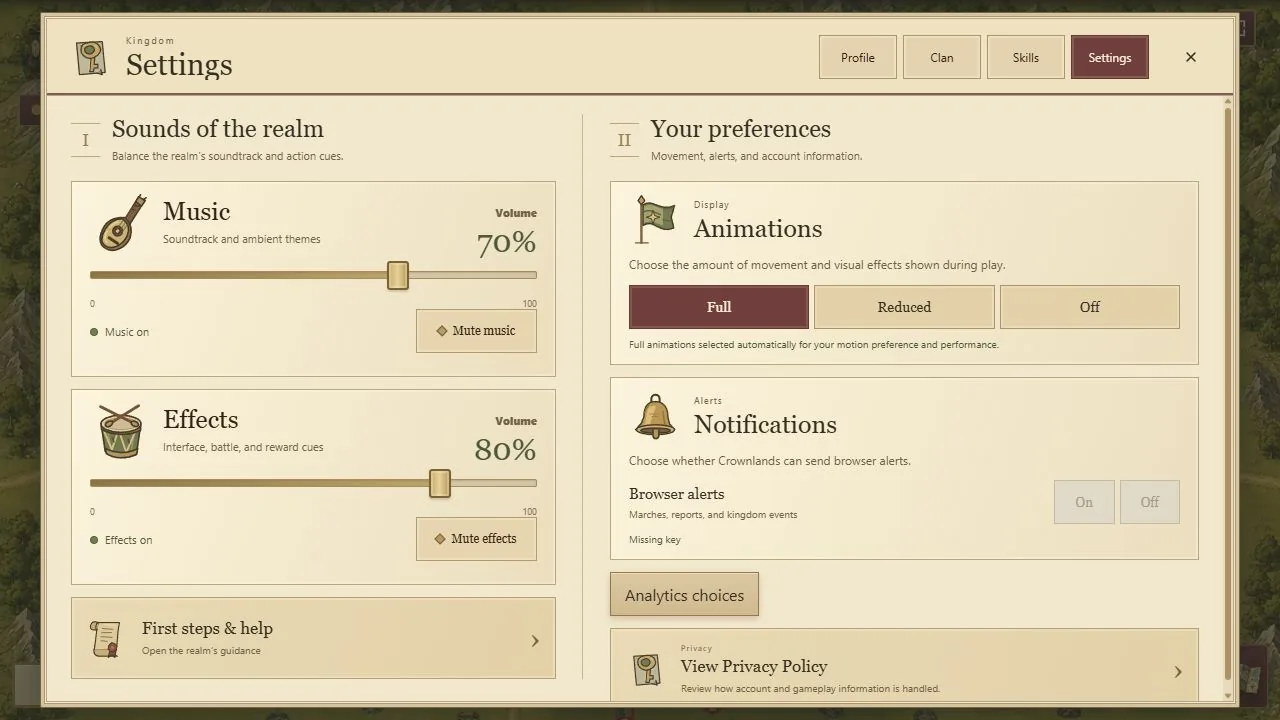
If reloading and reopening do not fix a broken cached build, use the browser’s site settings to clear stored data for playcrownlands.com, then sign in again while online. This removes local settings and cached files. It is not the same action as deleting a Crownlands account, and it should not be the first response to every slow server update.
Browser privacy restrictions and content blockers can interfere with sign-in or loading. Read the visible error and check the relevant browser setting. Avoid sharing authentication codes, cookies or tokens with anyone offering to fix the account.
Send a report someone can reproduce
Record the current address, device, browser, approximate time and exact visible message. Say whether the failure happens in a normal tab, the installed app or both, and whether you can sign in. If an action was involved, include the affected city or target without exposing private account data.
Use the Contact page for private account or privacy questions. The public issue tracker is suitable for a reproducible defect after removing sensitive details. A precise report helps distinguish a route problem, stale files, a sign-in failure and a delayed multiplayer result.